Anatomy of the System Bars in SwiftUI: Status Bar, Home Indicator and Safe Area
How the status bar and home indicator work on the iPhone, and how to keep them readable in SwiftUI with toolbarColorScheme, preferredColorScheme and safe area.
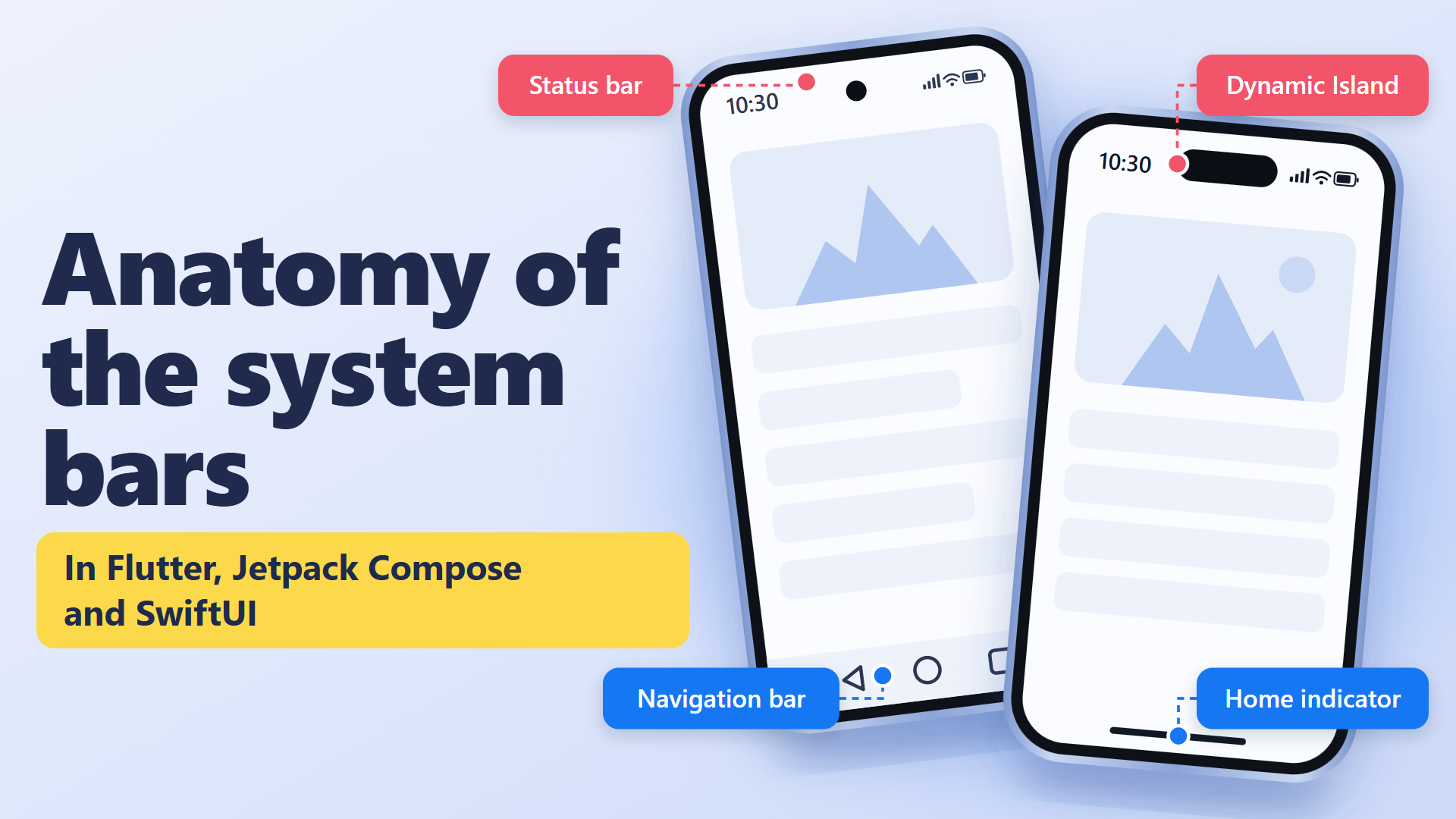
I have had App Store submissions rejected because of the status bar. The problem was contrast: the color of the system icons did not match the screen background, and the information at the top was hard to read. On Android, the same slip usually shows up at the bottom, with a white back icon on a white navigation bar, and the user cannot find a way out of the screen.
This kind of mistake does not depend on the framework. In SwiftUI, the care goes into the screens that break from the default, like a dark player, because there is no direct API to choose the status bar text color. That is why I decided to write about the anatomy of these bars, how they behave and how to configure them in SwiftUI.
What belongs to the system and what belongs to the app
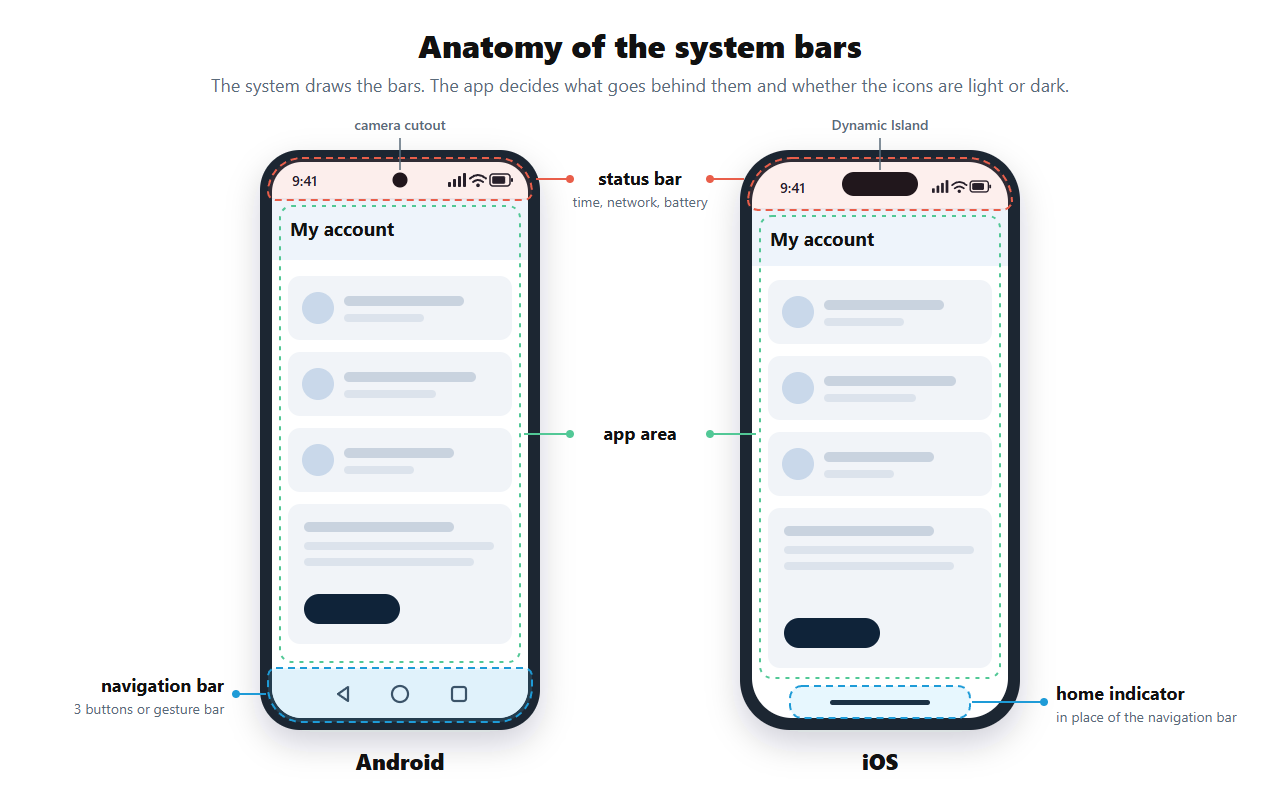
On the iPhone, the screen has two strips that do not belong to the app. At the top is the status bar, with time, network and battery, sharing space with the notch or the Dynamic Island. At the bottom is the home indicator. There is no navigation bar with buttons like on Android.
The app does not draw what is inside these strips. What it controls is two things: what shows behind them and whether the status bar text will be light or dark. The first answer comes from the app layout. The second is a setting many people never touch, and it decides whether the time will be readable.
The mistake that usually happens
This mistake reaches the store because it depends on context. Developers usually test with the device in a single mode, light or dark. The user runs the other one, or lands on a screen with its own background, like the splash, the onboarding or a video player, and the status bar text has to match that background.
The belief behind the problem is "the bar belongs to the system, so the system takes care of it". Part of it is true: the operating system is what draws the time and the battery. But the color of those icons is the app's decision, and the system does not check whether it matches what sits behind it.
How each framework names light and dark
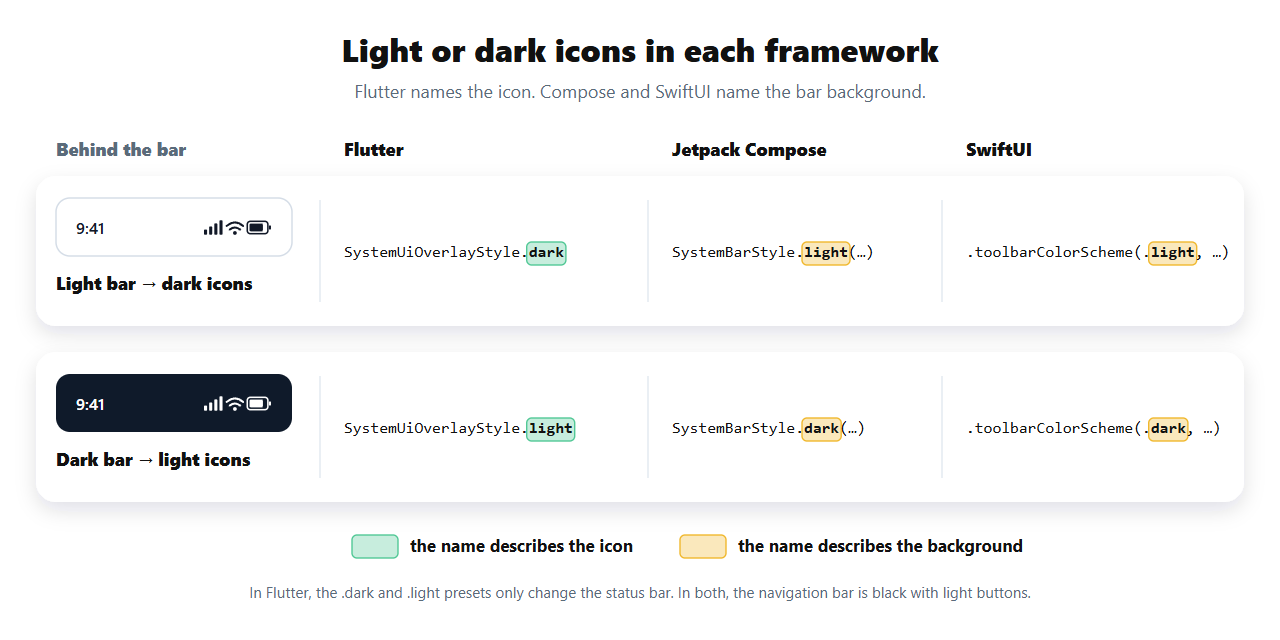
Before writing any code, answer one question: is the background behind the bar light or dark? A light background calls for dark icons, and a dark background calls for light icons.
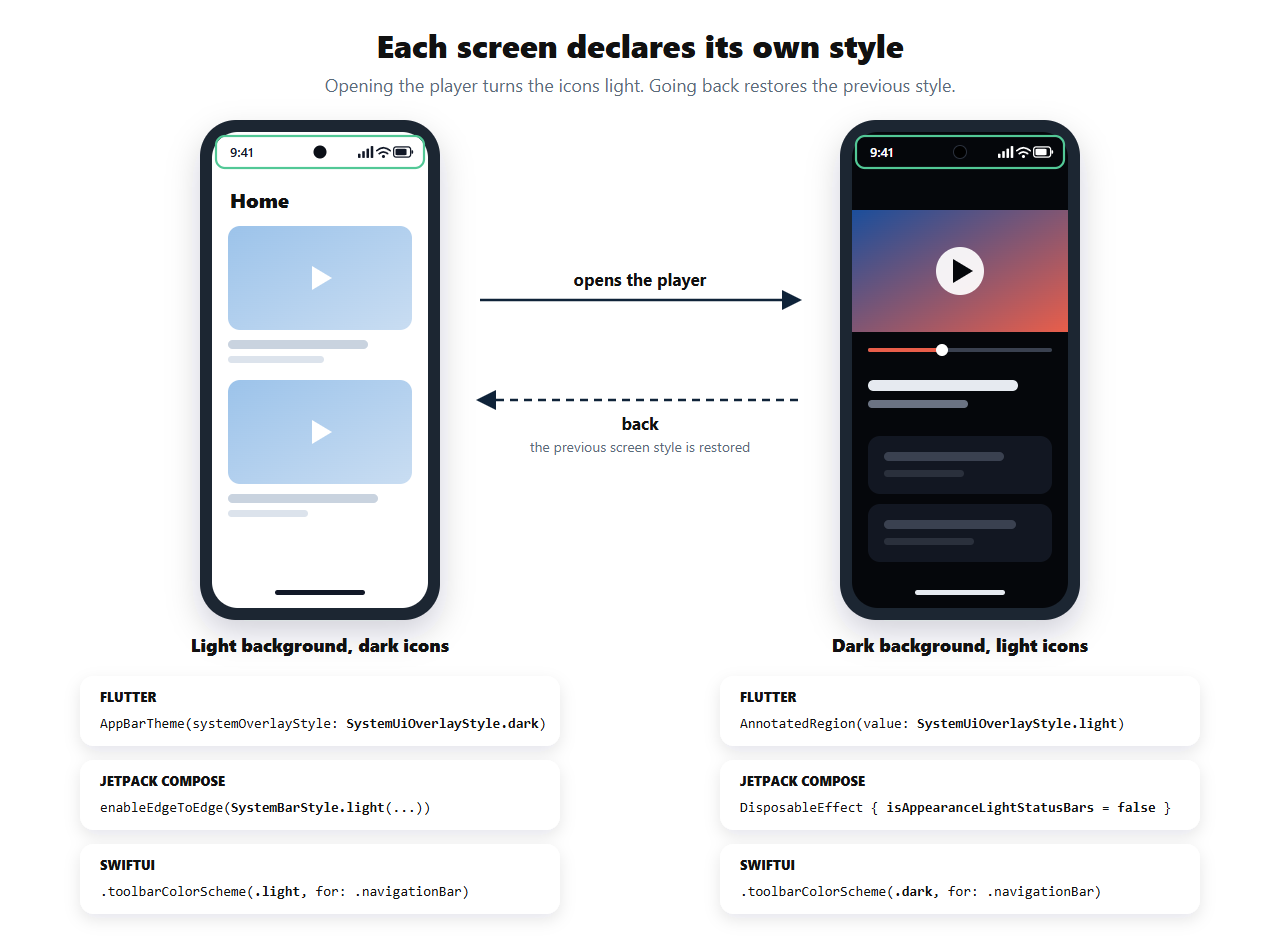
The confusion is that each framework names this differently. In Flutter, the name describes the icon, so dark icons are dark. In Compose and SwiftUI, the name describes the background, so the same dark icons are light.
In SwiftUI: color scheme and safe area
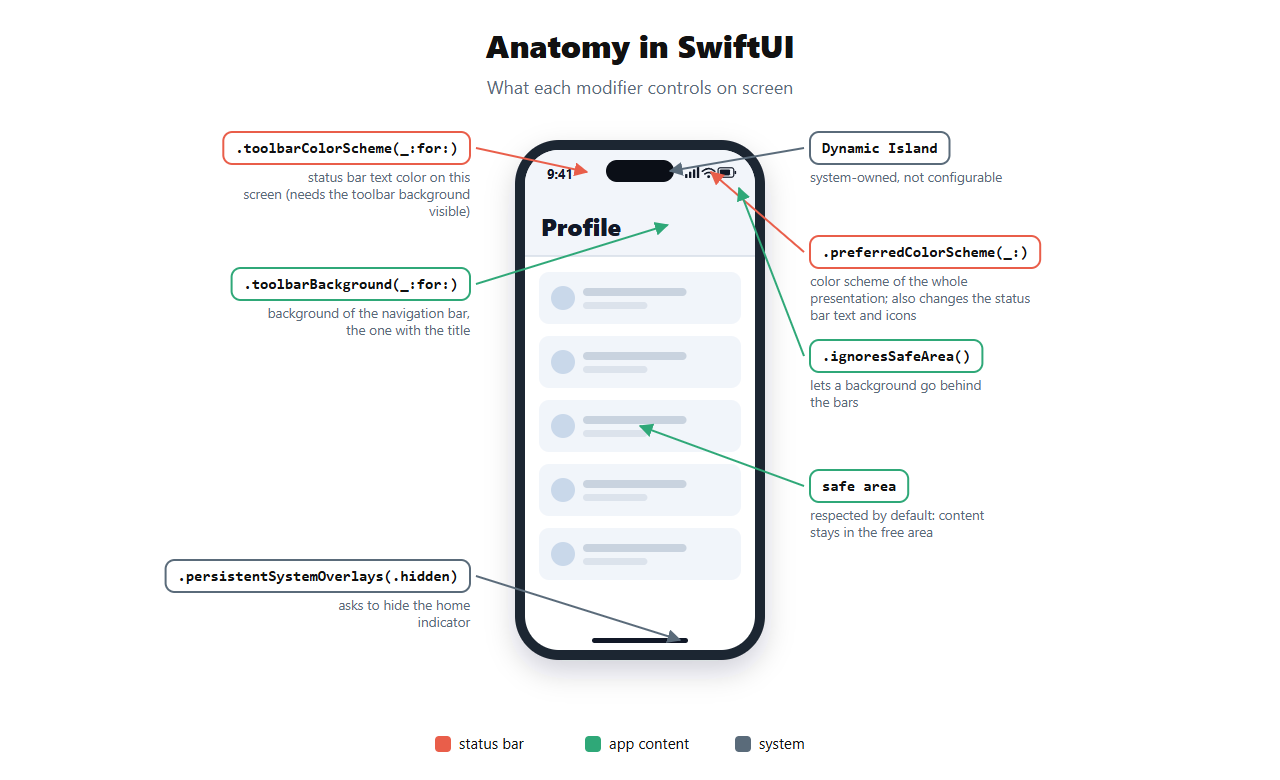
SwiftUI has no direct API to choose the color of the status bar icons. With the default style, iOS picks the appearance on its own to keep contrast with the content underneath. When a screen needs a guaranteed result, like a dark player, the way is to declare the color scheme of the bar or of the presentation.
Inside a NavigationStack, each screen can declare the color scheme of its own bar:
struct PlayerView: View {
    var body: some View {
        ZStack {
            Color.black.ignoresSafeArea()
            Image(systemName: "play.circle.fill")
                .font(.system(size: 96))
                .foregroundStyle(.white)
        }
        .navigationTitle("Player")
        .toolbarBackground(.black, for: .navigationBar)
        .toolbarBackground(.visible, for: .navigationBar)
        .toolbarColorScheme(.dark, for: .navigationBar)
    }
}toolbarColorScheme(.dark, for: .navigationBar) gives the status bar light text while this screen is on top of the stack, and going back restores whatever the previous screen declared. The naming follows Compose's logic: .dark describes the background, and the result is light text. Both toolbarBackground lines are required, because without a visible bar background SwiftUI ignores toolbarColorScheme. All three modifiers require iOS 16.
For screens without a navigation bar, like a player opened with .fullScreenCover, the way is .preferredColorScheme(.dark). It applies to the whole presentation, so it works well on a modal screen, but on a regular screen in the stack it darkens the whole app. If neither option fits, UIKit is what is left: a UIHostingController subclass that overrides preferredStatusBarStyle.
Insets work the opposite way from Android. SwiftUI respects the safe area by default, and drawing behind the bars is an explicit choice. In the example, only Color.black uses .ignoresSafeArea(), so the background fills the whole screen and the icon stays in the free area.
Before sending it to the store
Most of these mistakes only show up in a specific combination of theme, navigation and screen. Before each submission, it is worth going through three scenarios:
Light and dark theme. Switch the system theme with the app open and go through every screen.
Screens without a navigation bar. Splash, onboarding, player, camera and any screen with an image behind the status bar.
iPhone with a notch or Dynamic Island, in light and dark mode. On iOS, the background behind the status bar is always the app's, so test the dark screens with the device in light mode and the light screens in dark mode.
The rule that holds for any framework
Every decision about the system bars starts with the color of the background behind them. With that answer, the name of each API becomes a translation detail, and the rest is applying the insets so the content does not end up under the clock or the gestures.
None of these APIs checks your configuration. The default iOS style tries to keep contrast, but when the app declares the wrong color, the white text on a white background reaches the store review all the same.
After the bars, the next step is the other cases where the system takes up part of the screen: the keyboard and the notch when the app rotates to landscape. In all of them the app needs to know which part is its own.
Keep reading
Enhancing User Experience with Keyboards on iOS using Keyboard Actions
You'll never struggle with the iOS Keyboard in Flutter again! See how to solve a common problem in mobile apps for iOS that is…
Flutter Widgetbook: How to Document your Design System the Right Way!
How Widgetbook solves the documentation problem in Flutter projects with a custom design system. On Direção Fácil, it became a visual catalog, a contract with Figma, and precise context for Claude Code to generate screens using the right widgets.
Creating an AI Agent in Claude Code to Control my Smartphone
Automating Android app documentation and testing with an AI agent in Claude Code, wired to an MCP server that drives a real device over ADB.
This article was translated from Portuguese with the help of an LLM. The original version may contain nuances not fully captured in this translation.