Finally! The Secret of Testing in React Native Revealed
Everything you need to know about testing in React Native

Introduction
This article covers the implementation of automated tests in applications built with React Native.
Reasons to Use Automated Tests
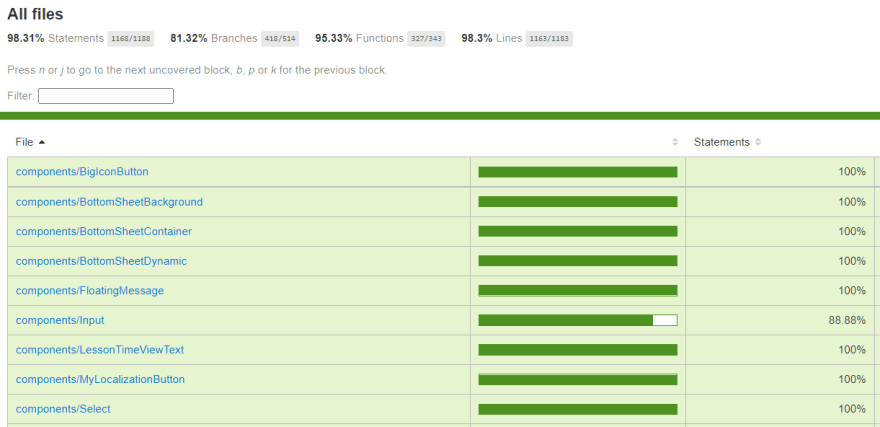
There are several reasons to use automated tests, among which three points stand out: reliability, speed, and analysis.
Reliability
An important point when running tests is getting feedback that a flow is actually working as expected, with the inputs and outputs being executed as planned — that is, the returns match what was previously written.
Speed
As the features of an application grow, more tests are needed, and performing them manually every time a change is made starts to become unfeasible. Instead, automation will always run the same written tests, without skipping a step or missing one of the tests, in much less time than manual execution.
Analysis
Various reports can be generated from automated test execution, such as coverage reports or reports of passed tests that can be used as software quality control. Furthermore, the tests themselves function as a kind of documentation. For example, if we need to know what happens when there's a wrong password input, we just look at the test that references that action.
Tools
There are many tools for testing mobile apps, but this article works with two: Jest and the React Native Test Library.
Jest
Jest is a testing framework maintained by Meta, the same company behind React Native development, which makes it much easier to use, configure, and include features, since its development is always aligned with the products it's used in.
React Native Test Library
The second tool works as a utility that will facilitate testing, initially developed by the Test Library organization itself, and later migrated to Callstack, the organization responsible for various widely used libraries in React Native, such as React Native Paper.
Configuring Jest
Right away we'll need to install the tool packages in the project. We can do this through NPM or Yarn:
$ yarn add @testing-library/jest-native @testing-library/react-hooks @testing-library/react-native @types/jest babel-jest jest
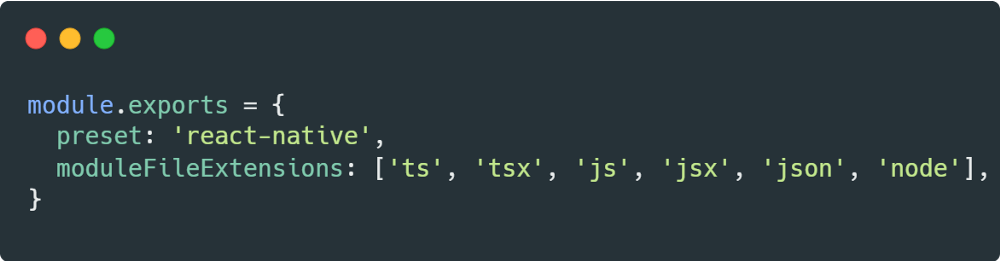
And at the root of the project, create a configuration file for Jest:
// jest.config.js
module.exports = {
  preset: 'react-native',
};
As mentioned earlier, Jest is already prepared for React Native, so we just need to tell it in the preset that the default configuration we want to use is react-native.
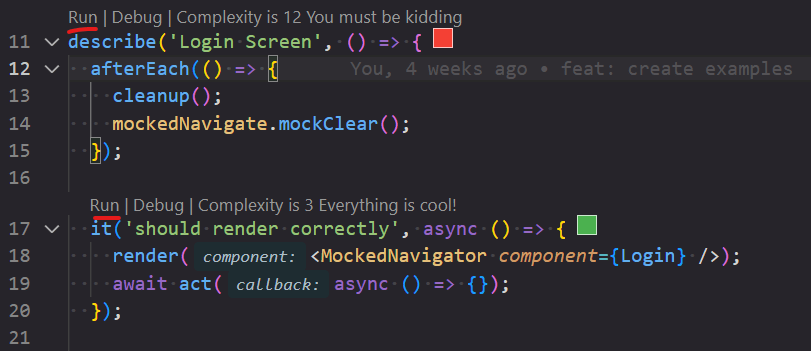
To run the tests you can use the jest command in the terminal or the VS Code Jest Runner extension, which adds a run button to your test scopes.
Creating Tests
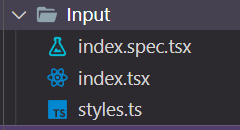
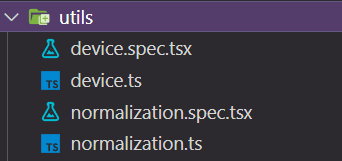
Tests need to be created in a separate file. This file can be located inside a __tests__ folder, or files ending in .test.js, .test.ts, .test.jsx, .test.tsx, .spec.js, .spec.ts, .spec.jsx, and .spec.tsx — this is given by the default regex rule and can be changed in Jest settings via the testMatch field.
At IdopterLabs, the convention of placing tests next to the main file of the component, screen, or utility that will be the test scope was adopted.
This makes it easy to know where tests are missing, because when you access a component folder, for example, it's clear whether or not the test file exists.

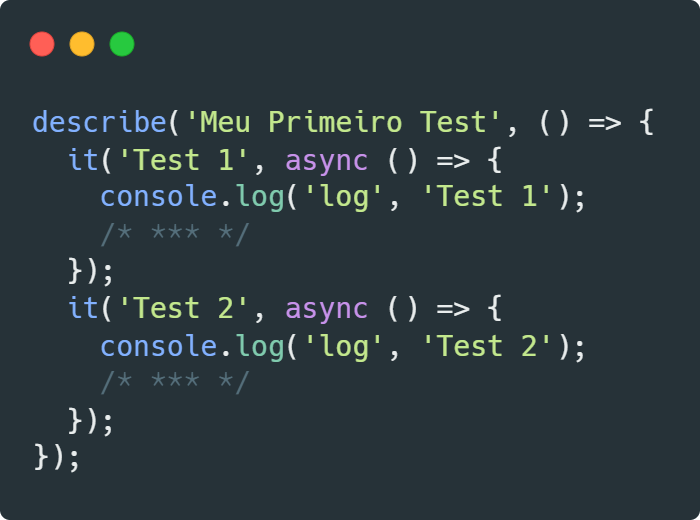
To write the tests, we'll initially need the following structure in our file:
import { render } from '@testing-library/react-native';
import Button from './index';

describe('Button', () => {
  it('should render without crashing', () => {
    render(<Button />);
  });
});
Where the first parameter of describe we describe who our scope is, and in the first parameter of it the description of the test that will be performed.
NOTE: it can be replaced by test in its place — the only difference is how it reads.
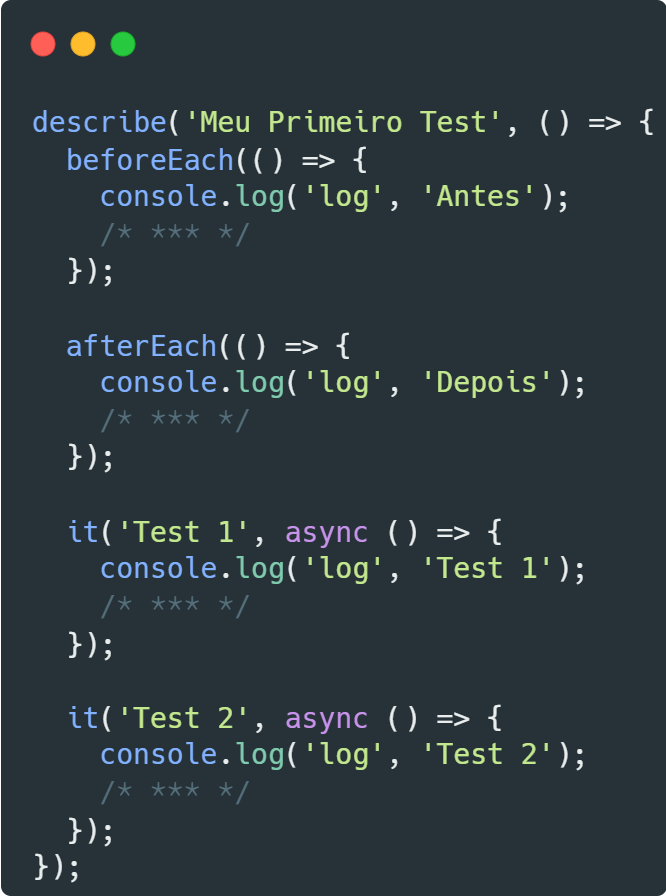
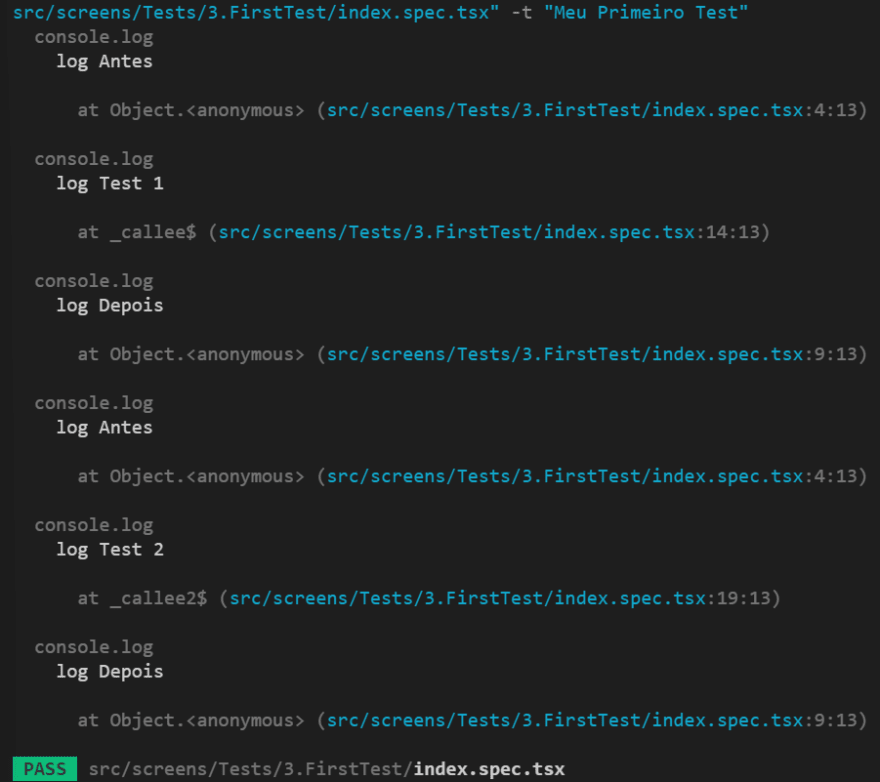
When we need to execute some task before or after each test, we can use the beforeEach and afterEach callbacks respectively.
describe('Button', () => {
  beforeEach(() => {
    console.log('antes de cada teste');
  });

  afterEach(() => {
    console.log('depois de cada teste');
  });

  it('should render without crashing', () => {
    render(<Button />);
  });
});
Now let's actually write a functional test. We have the following screen with a button component:
// components/Button/index.tsx
import React from 'react';
import { TouchableOpacity, Text } from 'react-native';

interface ButtonProps {
  onPress: () => void;
}

const Button: React.FC<ButtonProps> = ({ onPress }) => (
  <TouchableOpacity onPress={onPress}>
    <Text>Clique aqui</Text>
  </TouchableOpacity>
);

export default Button;
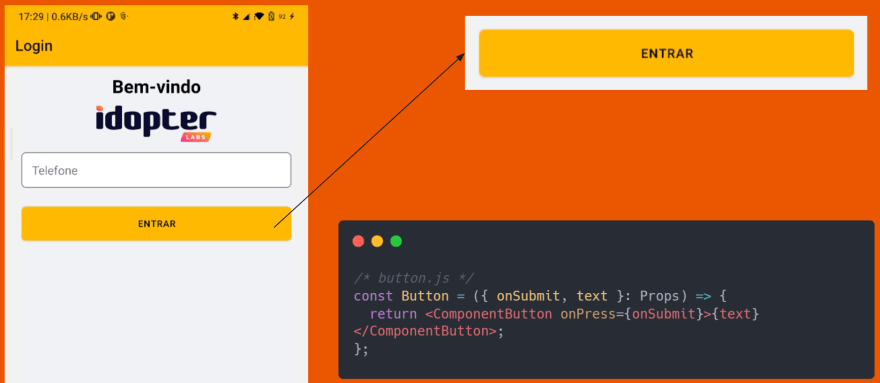
We want to test if everything went well with the component rendering. We can use the render itself for that:
// components/Button/index.spec.tsx
import { render } from '@testing-library/react-native';
import Button from './index';

describe('Button', () => {
  it('should render without crashing', () => {
    render(<Button onPress={() => {}} />);
  });
});
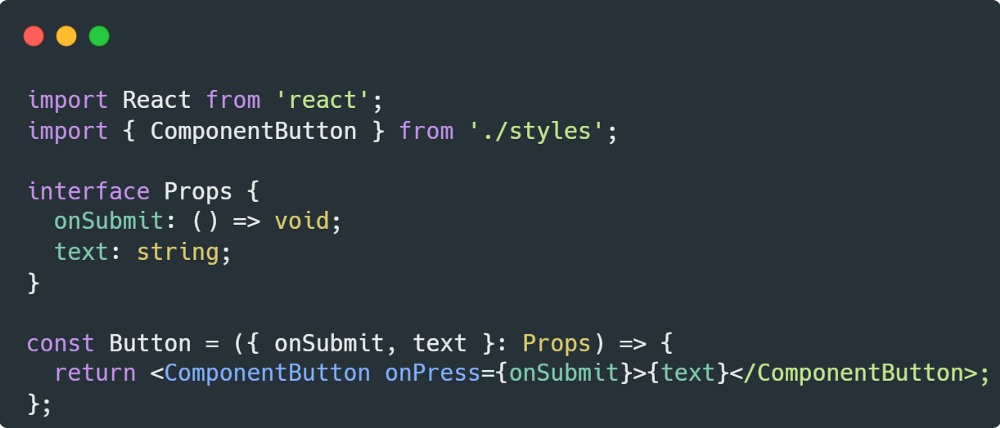
NOTE: Tests in Jest are run in a way that simulates native rendering, but are not actually run natively. This means you don't need a smartphone with the build installed to use it. Although this strategy brings several benefits, there are some downsides. The main one is being unable to verify the native modules used in the project, which often need to be mocked.
We can improve the verification of this component by checking whether the text is written as passed in the parameter, or whether there's an event on the button click. However, for that we'll need to isolate part of the element from our example component.

We can extract part of a visual element on the screen using Testing Library resources. The two most common ways are by id and text.
// components/Button/index.tsx
import React from 'react';
import { TouchableOpacity, Text } from 'react-native';

interface ButtonProps {
  onPress: () => void;
}

const Button: React.FC<ButtonProps> = ({ onPress }) => (
  <TouchableOpacity testID="button-component" onPress={onPress}>
    <Text>Clique aqui</Text>
  </TouchableOpacity>
);

export default Button;
// components/Button/index.spec.tsx
import { render, screen } from '@testing-library/react-native';
import Button from './index';

describe('Button', () => {
  it('should render without crashing', () => {
    const { getByTestId } = render(<Button onPress={() => {}} />);
    const button = getByTestId('button-component');
    expect(button).toBeTruthy();
  });
});
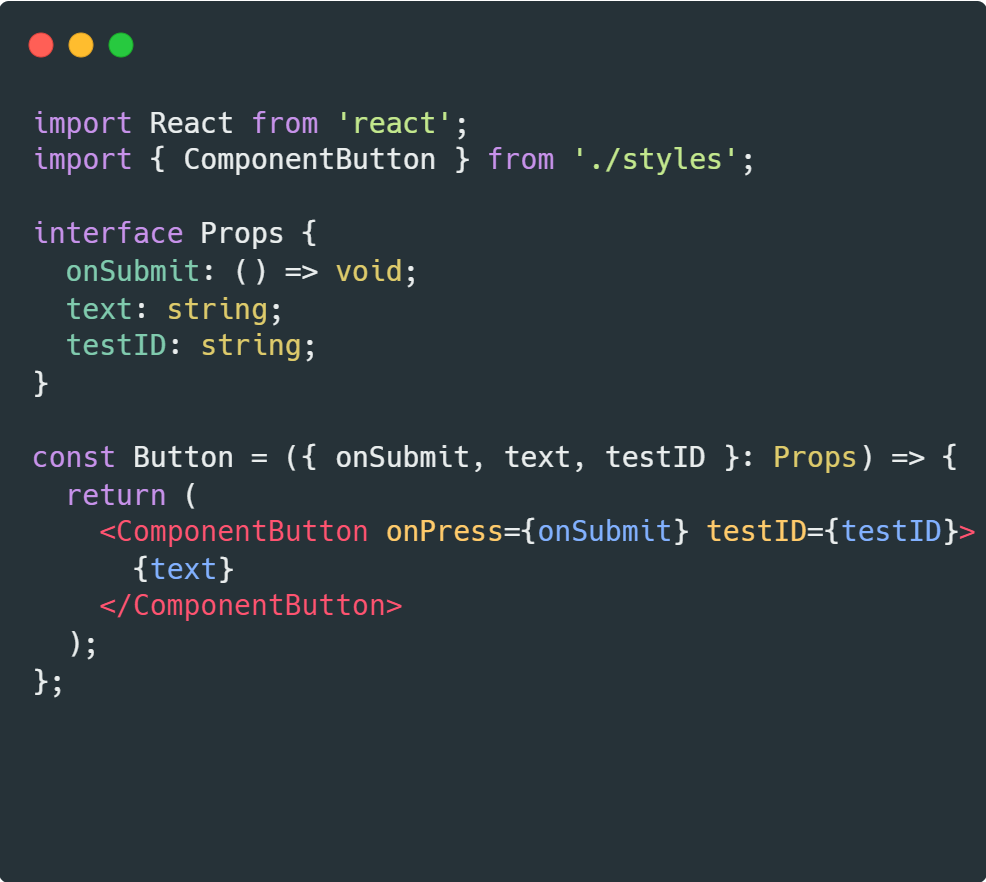
To extract by ID we need to identify the element by the testID property and fetch it with getByTestId('my-id'), or by text we can use getByText('text'). If we write the id or text differently from what was expected, we'll see an error. This way, we can use getByTestId to verify if something is actually being shown on screen, or getByText to verify if something was written as expected and exists on screen.

Knowing this, we can now write our test to verify if the text is being shown correctly:
// components/Button/index.spec.tsx
import { render } from '@testing-library/react-native';
import Button from './index';

describe('Button', () => {
  it('should render button text correctly', () => {
    const { getByText } = render(<Button onPress={() => {}} />);
    const buttonText = getByText('Clique aqui');
    expect(buttonText).toBeTruthy();
  });
});

To simulate the button click, we'll use FireEvent from Testing Library. By default, there are three types of events already implemented: fireEvent.changeText(...), used to change text in a TextInput; fireEvent.scroll(...) to scroll on the page; and fireEvent.press(...) to click on a View.
// components/Button/index.spec.tsx
import { render, fireEvent } from '@testing-library/react-native';
import Button from './index';

describe('Button', () => {
  it('should call onPress when button is pressed', () => {
    const mockOnPress = jest.fn();
    const { getByTestId } = render(<Button onPress={mockOnPress} />);
    const button = getByTestId('button-component');
    fireEvent.press(button);
    expect(mockOnPress).toHaveBeenCalled();
  });
});


Conclusion
In this post, we saw how to test a simple button component in a React Native application. The same can be applied to an entire application screen. The ideal is to write unit tests, component tests, and screen tests — which are the pages using the components. This way, we can verify that the integration works as expected, as well as that the components work correctly individually.
For those interested, the complete source code used in this post is in the GitHub repository.
I hope this post helps you on your next project. If your company needs help building mobile applications, get in touch!
This article was translated from Portuguese with the help of an LLM. The original version may contain nuances not fully captured in this translation.