Creating an AI Agent in Claude Code to Control my Smartphone
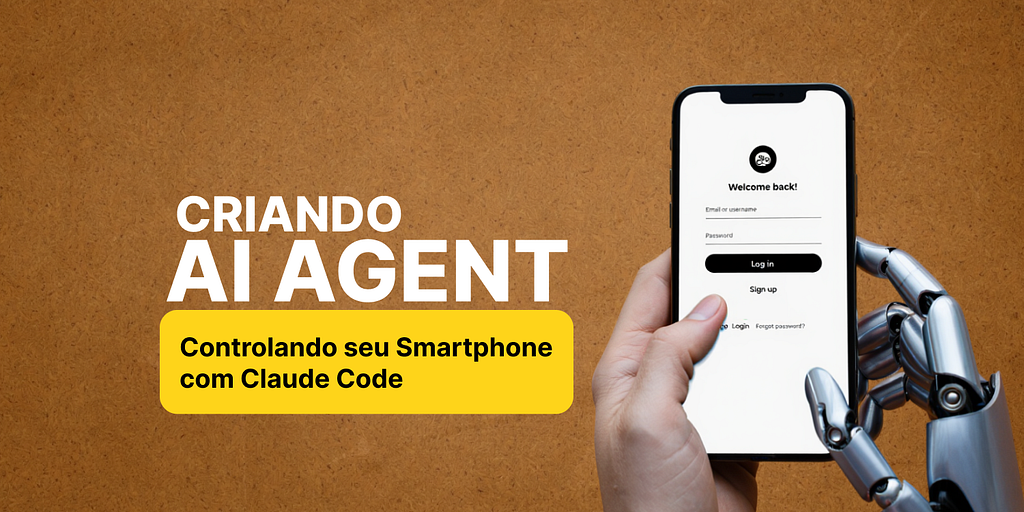
Automating Android app documentation and testing with artificial intelligence. I was facing a specific challenge: I needed to automatically document various flows of an Android application. That's when I started exploring ways to carry out this process, and one of the tools I decided to test was Claude Code.
Automating Android App Documentation and Testing with Artificial Intelligence
The Initial Challenge
I was facing a specific challenge: I needed to automatically document various flows of an Android application. That's when I started exploring ways to carry out this process, and one of the tools I decided to test was Claude Code.
Initially, Claude Code didn't seem like a good choice for creating an autonomous agent — I had to keep "teaching" it how to use ADB commands to simulate user actions like clicks, typing, and other interactions, so the AI could control my smartphone.
I thought about looking for an MCP (Model Context Protocol) that already implemented this functionality, but I couldn't find a suitable one, so I decided to build my own: Android-Debug-Bridge-MCP.
The Power of ADB UI Automator
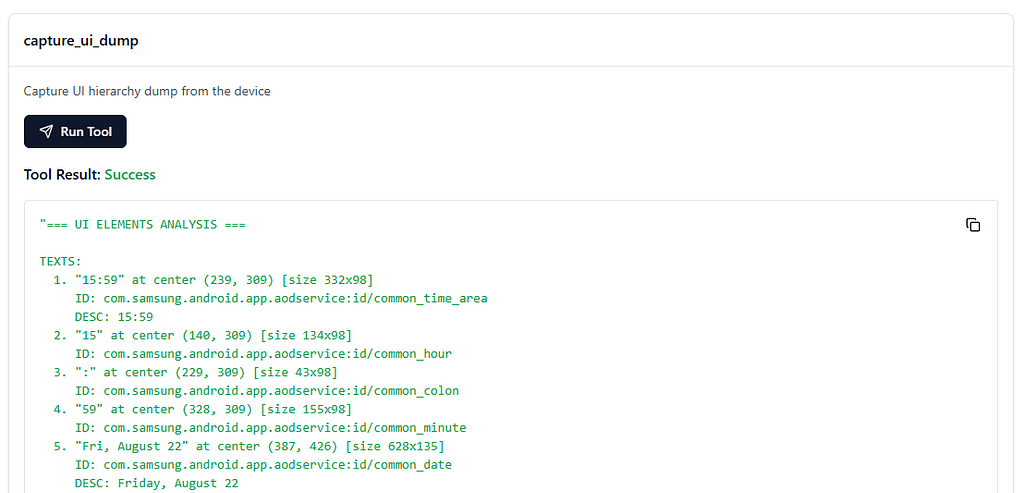
One of the most valuable ADB tools for what we're building is the UI Automator, which returns a detailed XML of the current interface. This makes the use of the adb shell tap x y command much more precise for clicking on specific elements on the screen — for the LLM, XML or Markdown format is more effective than an image.
What I needed to organize was:
- What types of elements to detect in the interface
- How to show the content and position of each element
- How to allow Claude Code to execute the correct action at the exact position
Evolving the Agent
After integrating Claude Code with my MCP, I rewrote the agent and gradually improved it until reaching an efficient flow. My AI agent follows a simple but effective pattern:
- Visualize the current screen content
- Execute a specific action
- Repeat the process
- Generate a complete test report
Real Example: Testing the Stock Pulse App
I'll show how the agent automatically tested the process of adding a stock (NVDA) within an app I helped develop called Stock Pulse:
Command Used
@agent-app-tester Open br.com.idopterlabs.Tickerapp, add an Nvidia stock to the portfolio, click Save, and I expect the stock's current data to be displayed on the screen.
The agent then executed the entire flow automatically. It created a test folder called tickerapp_nvda_test, opened the Stock Pulse app, and began its work. First, it captured the initial screen showing the empty portfolio screen. Then, it navigated to add a new stock, clicked the "+" button, and captured the stock selection screen.
Next, the agent selected NVIDIA (NVDA) from the list, verified that the stock details were displayed correctly, and generated a complete report with all screenshots and documented results.
Final Result
The agent automatically generated:
- Organized screenshots
- Complete markdown report
- Documentation of each step
- Success/failure status for each stage
All this in less than 2 minutes, without manual intervention!
Use Cases and Possibilities
The combination of MCP with Claude Code opens up various possibilities:
Test Automation becomes incredibly powerful with this approach. You can run automated regression tests for critical flows without any manual intervention, automatically validate interface elements and layouts, and simulate realistic user interactions for usability testing.
Intelligent Documentation is another game-changer. The system can automatically capture organized screenshots for app documentation, create detailed user journey documentation within applications, generate technical manuals with step-by-step guides and visual evidence, and even perform periodic monitoring to check application states.
The possibilities are practically endless — any need involving automated control of Android devices can benefit from this solution.
Quick Setup
Getting started is simple: you'll need ADB installed and configured on your system, an Android device connected or an emulator running, and Claude Code properly configured.
To install the MCP, add it to Claude Code with the command claude mcp add --scope project android-debug-bridge-mcp -- npx android-debug-bridge-mcp.
Then, configure a custom agent with specific prompts for your test cases. You can find my configuration at: app-tester.md
Once everything is configured, you can start running tests using simple and direct commands to start the automation.
Conclusion
Claude Code, when combined with the right tools and well-structured instructions, demonstrates impressive potential for automation. This experiment represents just the beginning of a broader exploration — there is plenty of room for future improvements.
It's important to recognize that for more complex scenarios, the expertise of a professional QA is still necessary. AI automation complements, but does not completely replace, specialized testing knowledge.
Despite the limitations, I must say it was extremely gratifying to develop this solution. It not only met my initial goal of documenting application flows, but also opened doors to new automation possibilities that previously seemed impractical.
The project will continue to evolve, and I hope to bring new features in the future.
This article was translated from Portuguese with the help of an LLM. The original version may contain nuances not fully captured in this translation.